
Losing files from an SD card can feel immediate and expensive, especially when the card stores vacation photos, drone footage, camera RAW files, school documents, or work videos. The good news is that SD card data loss does not always mean the files are gone forever. With the right SD card recovery software, many users can still recover deleted or formatted files before new data overwrites them.
This guide explains how SD card file recovery works, which free or built-in checks you should try first, where those methods fall short, and when a dedicated recovery workflow becomes the smarter choice. If you are comparing tools or trying to recover a memory card safely, starting with a controlled scan is usually better than guessing.
Part 1. Why Files Get Lost From an SD Card
SD card data loss usually happens for a few repeat reasons. A user may delete files during cleanup, format the card too early, remove it while transfer is still running, or keep using a damaged card reader. Corruption can also happen after sudden power loss, camera errors, system crashes, or repeated insert-and-remove behavior.
This is why people often search for SD card data recovery software only after they realize the missing files were the only copy. In many cases, the data still exists on the card until that space is reused by new files.
Part 2. Can Deleted or Formatted SD Card Files Still Be Recovered?
Yes, often they can, but the result depends on what happened after the loss. If the files were deleted recently and the card has not been reused much, the chances are usually better. If the card was quick-formatted, recovery may still work because many file references are removed before the actual data blocks are fully replaced.
However, recovery becomes harder when the card has physical damage, severe corruption, or heavy overwrite activity. That is why the first rule is simple: stop using the card immediately.
Recovery Outlook by Situation
- Recently deleted files — often a strong recovery chance — stop using the card and scan it right away
- Quick-formatted SD card — often recoverable — avoid saving anything new
- Unreadable memory card — mixed outcome — test a different reader or port before scanning
- Physically damaged card — lower software success — may require professional recovery
- Overwritten data — low recovery chance — partial recovery or failure is possible
Part 3. What to Try Before Using Recovery Software
Method 1: Check Whether the Files Were Already Copied Elsewhere
Before scanning the card, check your computer import folder, Photos library, cloud sync folder, NAS backup, or external drive. Many users think files are lost when they were actually copied to another location and only removed from the card.
Method 2: Try Another Card Reader or Device
Sometimes the problem is not file deletion but access failure. A damaged adapter, unstable USB port, or weak reader can make a healthy SD card appear empty or unreadable.
Method 3: Use Built-In Repair Tools Carefully
System tools may help detect the card, but they do not replace file recovery software. In some cases, automatic repair attempts can change the card state before you recover what matters most.
Limit: built-in methods are useful for detection and simple checks, but they usually do not provide preview, selective recovery, or strong support for mixed photo and video recovery scenarios.
Part 4. Why Dedicated SD Card Recovery Software Is Often the Better Option
A specialized recovery tool gives you a more controlled process. Instead of guessing where the files went, you scan the card, review file categories, preview recoverable content, and save the restored files to a separate location. That workflow is safer than repeatedly reconnecting the card, attempting random fixes, or continuing to shoot new footage onto the same card.
For users comparing solutions, Wondershare Recoverit stands out because it is built for deleted, formatted, corrupted, and inaccessible storage cases across photos, videos, documents, and other everyday file types. It also makes more sense for users who want a guided path rather than trial-and-error recovery.
Method Comparison
Check backup copies — fastest and free — only works if another copy already exists
Use another reader or device — good for access issues — does not recover deleted files by itself
Built-in repair tools — limited diagnosis value — may not support safe preview and selective restore
Dedicated recovery software — best for deleted, formatted, and inaccessible card data — provides scan, preview, and restore workflow
Part 5. Recoverit as an SD Card Recovery Software Option
Recoverit fits this keyword well because SD card loss often involves photos, videos, camera cards, and portable memory used across devices. A recovery tool needs to do more than find a few filenames. It should help users identify file quality, filter results, and restore only what they need.
If you want a more specific option for removable media, memory card recovery software should support common file systems, major file formats, and a clear preview-first process. Recoverit covers those needs while keeping the workflow simple for non-technical users.
Why Recoverit Is Worth Considering
- Supports SD cards, microSD cards, CF cards, and other removable storage
- Helps recover photos, videos, documents, archives, and other common file types
- Preview support helps confirm whether files are usable before recovery
- Selective recovery saves time and avoids restoring unnecessary files
- Useful for deletion, formatting, corruption, and inaccessible-card scenarios
- Beginner-friendly workflow reduces recovery mistakes during stressful situations
Part 6. 3 Steps to Recover Files With SD Card Recovery Software
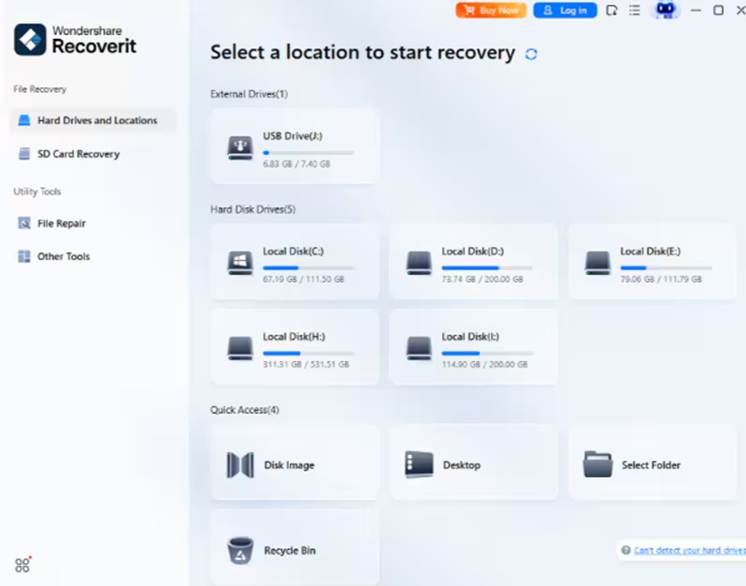
Step 1: Connect the SD Card and Choose It for Scanning
Insert the SD card with a reliable reader, open the recovery tool, and select the card from the device list. This step ensures you scan the correct storage source instead of your system drive.
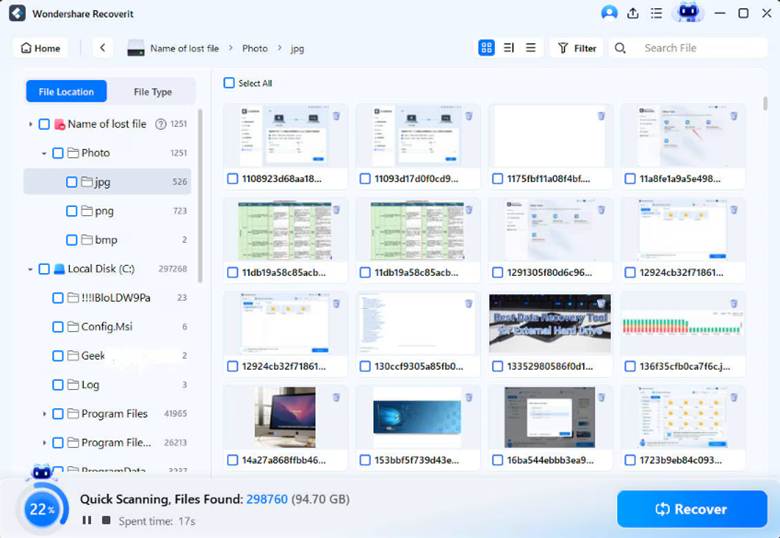
Step 2: Start the Scan and Review Recoverable File Categories
Run the scan and let the software search for deleted, hidden, and formatted data. During this phase, the tool should organize results by file type so you can find images, videos, and documents faster.
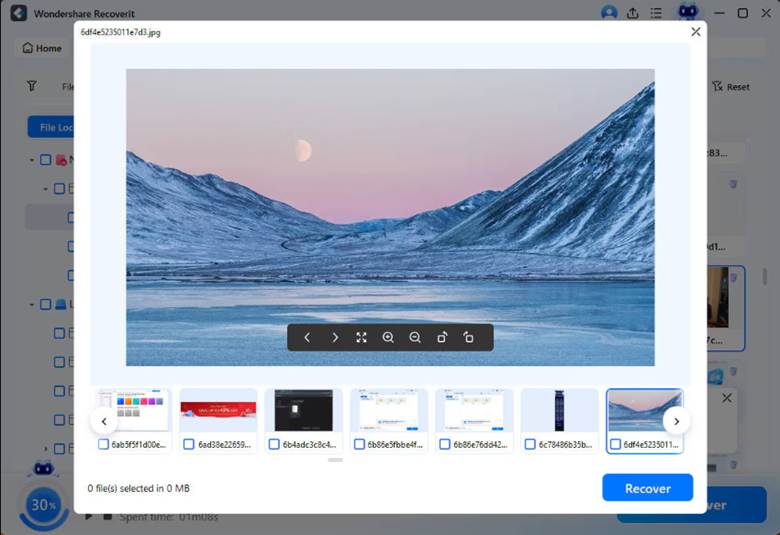
Step 3: Preview and Recover Files to Another Location
Preview the files you want back, then save them to your computer or another external drive. Do not recover files back onto the same SD card, because that can overwrite other missing data and reduce your remaining recovery chance.
Part 7. Best Practices to Improve SD Card Recovery Success
- Stop using the card immediately after you notice data loss
- Do not format the card again before scanning it
- Use a stable card reader and a secure computer connection
- Recover files to a different storage location
- Preview critical files such as videos and RAW photos before finishing recovery
- Back up recovered files in at least two places afterward
- When Recovery May Be Limited
It is better to be direct about the limits. No SD card recovery software can guarantee full results in every case. If the card has physical chip damage, severe overwrite activity, or badly fragmented media, the recovery result may be partial. Long video files and damaged RAW formats can be harder to restore completely than smaller documents or photos.
That does not make recovery pointless. It means users should act quickly and use a workflow that avoids making the loss worse.
Why Choose Recoverit
- Good fit for users who need a guided recovery workflow instead of complex troubleshooting
- Strong match for camera cards, portable media, and mixed file-type recovery
- Preview and selective restore offer more control than blind recovery attempts
- Practical option for deleted, formatted, corrupted, and inaccessible SD card cases
Conclusion
The best SD card recovery software is the one that helps you act safely, scan thoroughly, and restore only what you need. Free checks are still worth trying first, but they do not solve every loss scenario. If the files were deleted from the card, the card was formatted, or the memory card no longer behaves normally, a guided tool like Recoverit is usually the more practical option.

Leave a Reply