
Microsoft Outlook stores mailbox data in PST (Personal Storage Table) files, including emails, attachments, contacts, calendars, tasks, and notes. Since these files often contain important personal and business information, PST corruption can create serious problems when Outlook cannot access the stored data.
A damaged PST file may prevent users from opening their mailbox, cause Outlook errors, or result in missing emails and folders. In such cases, a PST repair tool helps scan the corrupted file and recover accessible mailbox items.
Common Reasons Why Outlook PST Files Get Corrupted
PST corruption can happen due to different reasons, including:
Large PST File Size
As emails and attachments increase over time, PST files become larger. Oversized PST files may slow down Outlook performance and increase the risk of errors.
Unexpected Outlook Shutdown
Sudden system crashes, power failures, or forced Outlook closures while the PST file is active can damage the file structure.
Storage Drive Issues
Hard drive problems, bad sectors, external drive errors, or interrupted file transfers can make PST files inaccessible.
Virus or Malware Damage
Malware or viruses can affect Outlook data files, causing corruption, missing items, or access issues.
Import and Export Errors
Incomplete Outlook migration, failed import/export processes, or interrupted transfers can damage PST files.
Common Problems Users Face with Corrupted PST Files
A corrupted PST file may cause issues like:
- Cannot open Outlook data file
- Missing emails, folders, or attachments
- Outlook crashes or freezes
- Error messages while accessing PST files
Who Should Use These Outlook PST Repair Tools?
PST repair tools are useful for Outlook users who need to recover emails and other mailbox items from damaged PST files.
A free online outlook PST repair service is suitable for users who need a quick browser-based solution without installing software, especially for smaller PST files.
A desktop PST repair tool is designed for larger, severely corrupted, or business-critical PST files where users need advanced recovery features and local data processing.
PST Repair Solutions Tested in This Review
For this review, I tested two Stellar PST repair solutions:
- Stellar Online PST Repair Service — designed for quick PST recovery through a browser without software installation.
- Stellar Repair for Outlook Desktop Software — built for advanced recovery, large PST files, batch repair, and users who prefer repairing data locally on their computer.
Both solutions are designed for different recovery needs, so this review covers their features, repair process, performance, advantages, and limitations.
How to Repair PST Files Online (Step-by-Step)
After understanding how PST corruption happens, I started testing the Stellar Online PST Repair Service to see how simple the repair process is and how well it handles a damaged Outlook data file.
The biggest advantage of this online service is that it works directly from a browser. There is no need to download or install any software, which makes it useful for users who need a quick PST repair solution.
Step 1: Upload the Corrupted PST File
The first step is uploading the damaged Outlook PST file to the online repair tool. The interface is straightforward — users only need to select the PST file from their system and start the upload process.
During my test, I uploaded a PST file of around 125 MB. The tool displayed the file name, file size, and upload progress, making it easy to track the process.
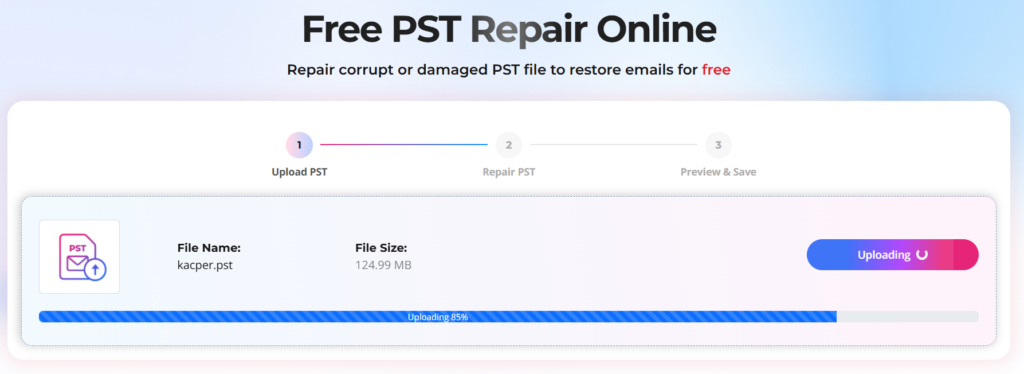
The upload time mainly depends on the PST file size and internet speed. Smaller PST files upload quickly, while larger mailbox files may require more time.
Step 2: Start the PST Repair Process
Once the upload was completed, the online service automatically started the PST repair process. The tool scanned the corrupted Outlook data file and attempted to rebuild the mailbox structure.
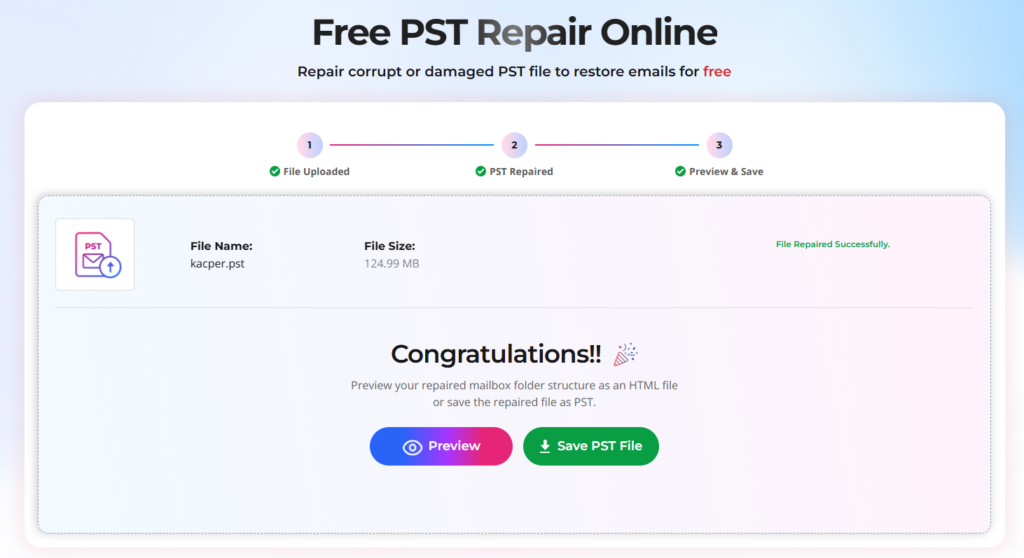
During this stage, the repair process focuses on recovering different Outlook items, including:
- Emails
- Mail folders
- Contacts
- Calendars
- Notes
- Tasks
The process was simple because everything happened automatically without requiring any manual configuration.
Step 3: Preview Recovered Outlook Data
After the PST file was repaired successfully, Stellar provided an option to preview the recovered mailbox structure before saving the file.
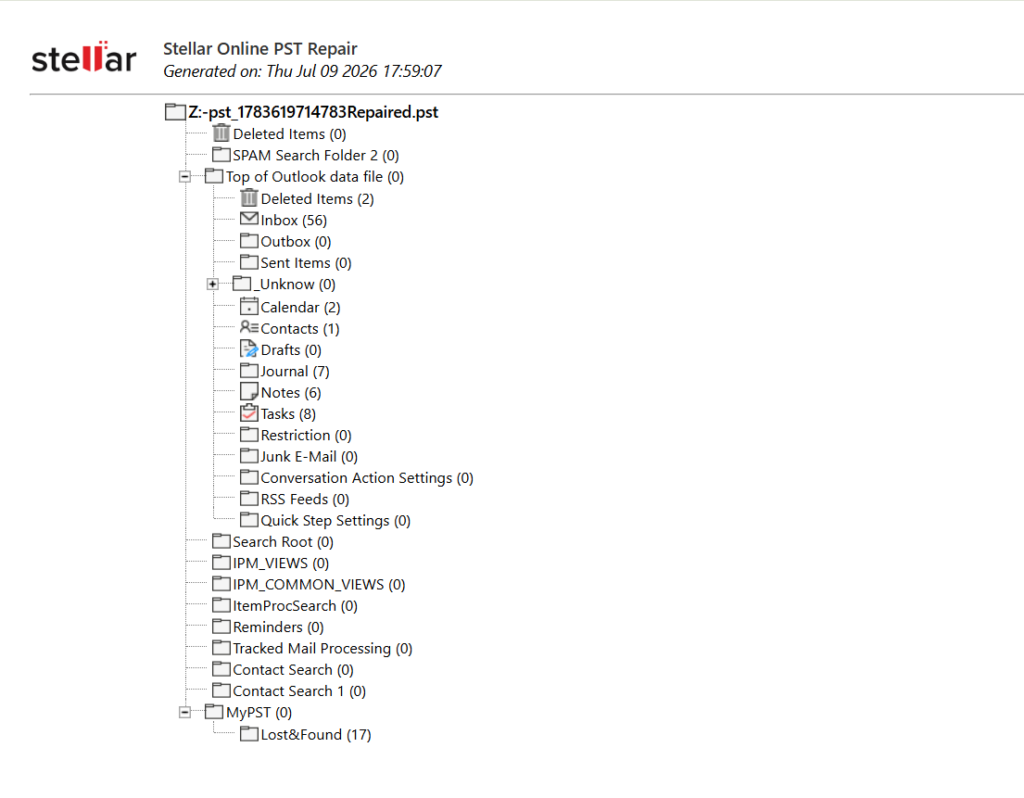
The preview showed recovered Outlook folders such as:
- Inbox
- Sent Items
- Deleted Items
- Calendar
- Contacts
- Notes
- Tasks
- Other mailbox folders
This preview feature is helpful because users can check whether their important Outlook data is recoverable before downloading the repaired PST file.
Step 4: Download the Repaired PST File
After verifying the recovered mailbox data, the final step is downloading the repaired PST file.
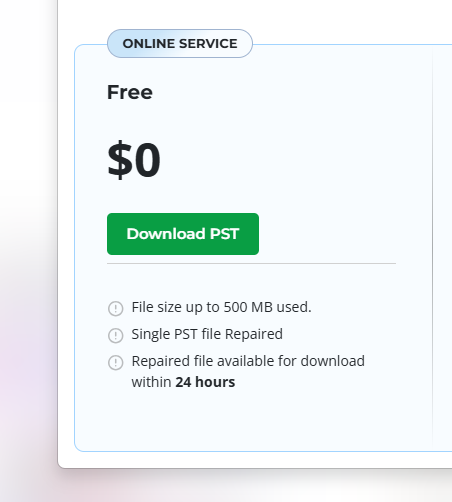
The service provides different options depending on the file size and recovery requirements:
Stellar Online PST Repair Service: Free vs Premium Plan
Stellar Online PST Repair Service provides two options depending on the PST file size and recovery requirements. During testing, I checked both plans to understand which type of user each option works best for.

My Experience Using Stellar Online PST Repair Service
During testing, the online repair process felt beginner-friendly. The three-step workflow — upload PST, repair file, and preview/save recovered data — makes it easy even for users without technical knowledge.
The online version is a convenient choice for quick PST repair tasks. However, users with very large files, multiple damaged PST files, or sensitive business mailbox data may find the desktop software more suitable because it provides advanced recovery options and local processing.
Stellar Repair for Outlook Desktop Software Review
After testing the online PST repair service, I tested the Stellar Repair for Outlook desktop software to understand how it performs with a damaged Outlook PST file. The desktop version is designed for users who need more advanced recovery options, especially for large PST files, severely corrupted mailbox data, and situations where users prefer repairing files locally on their computer.
Here is my step-by-step experience using the software.
Step 1: Install and Launch Stellar Repair for Outlook
The first step was installing Stellar Repair for Outlook on the system. The installation process was simple and similar to installing any regular Windows application.
After running the setup file, the installation wizard guided me through the process. It extracted the required files and completed the setup within a few minutes.
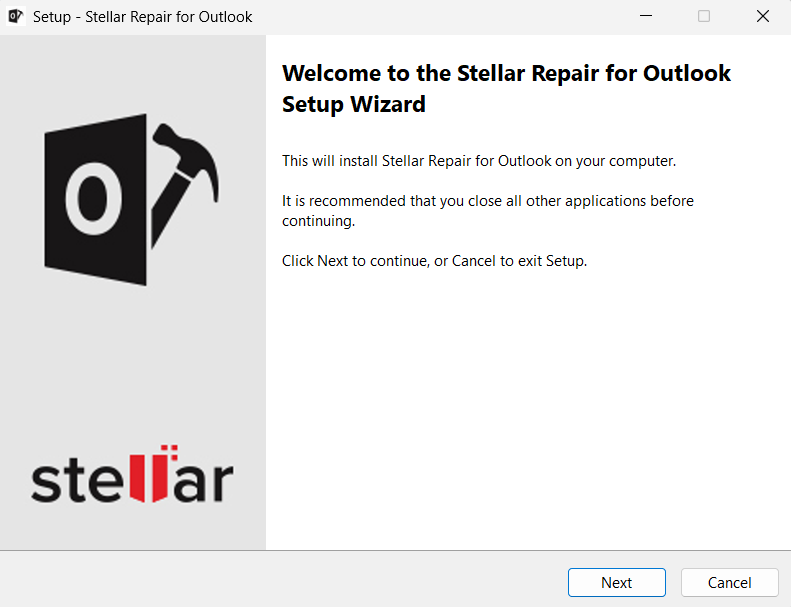
Once installed, I launched the software. The dashboard interface was clean and organized, with important options available directly from the main screen, including selecting an Outlook data file, saving repaired files, and accessing scan options.
The simple layout makes it easier for both beginners and advanced users to start repairing PST files without complicated settings.
Step 2: Select the Corrupted Outlook PST File
After launching the software, the next step was selecting the damaged PST file for repair.
Stellar provides two ways to select Outlook data files:
Browse PST Manually
If you already know the PST file location, you can directly browse the folder and select the corrupted file.
During my test, I manually selected the PST file from my system storage.
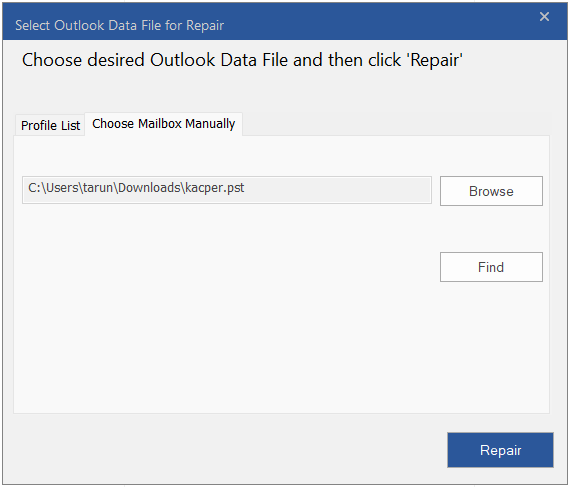
Find PST Automatically
For users who do not know where their Outlook data file is saved, the software also provides a “Find” option. It can search the selected location and help locate available PST files automatically.
This is helpful because many users may not know the default Outlook PST storage location.
Step 3: Scan and Repair the PST File
After selecting the PST file, I started the repair process. Stellar Repair for Outlook scanned the file and began recovering mailbox items.
During scanning, the software displayed the repair progress and showed which mailbox item was currently being processed.
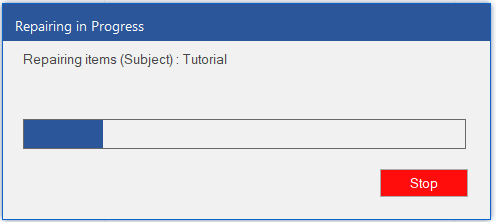
The scanning performance depends on:
- PST file size
- Number of emails and attachments
- Level of file corruption
The software is designed to handle large Outlook data files and deeply corrupted PST files while maintaining the original mailbox structure.
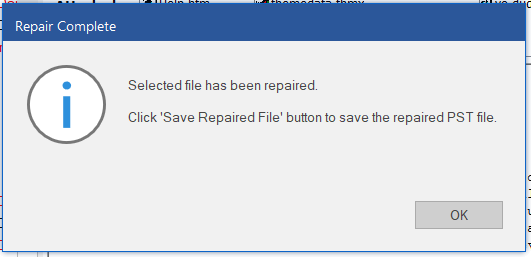
After completing the process, the software displayed a confirmation message that the selected file had been repaired successfully.
Step 4: Check Repair Log Report
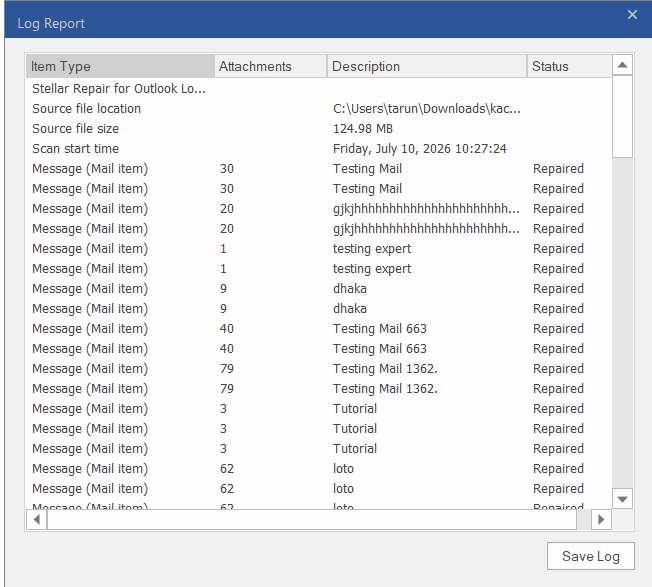
After the repair process finished, Stellar generated a detailed log report showing information about the recovered mailbox items.
The report included details such as:
- Source PST file location
- Original file size
- Scan start time
- Recovered mailbox items
- Repair status
During my test, different mailbox items were marked as repaired, which helped verify the recovery process.
Step 5: Preview the Recovered Mailbox Data
One useful feature I tested was the mailbox preview option.
After scanning, Stellar Repair for Outlook displayed the recovered Outlook data in a familiar mailbox-style interface. The left panel showed the folder structure, while the preview section allowed checking individual items before saving.
The recovered mailbox data included:
- Emails
- Attachments
- Contacts
- Calendar items
- Tasks
- Notes
- Deleted items
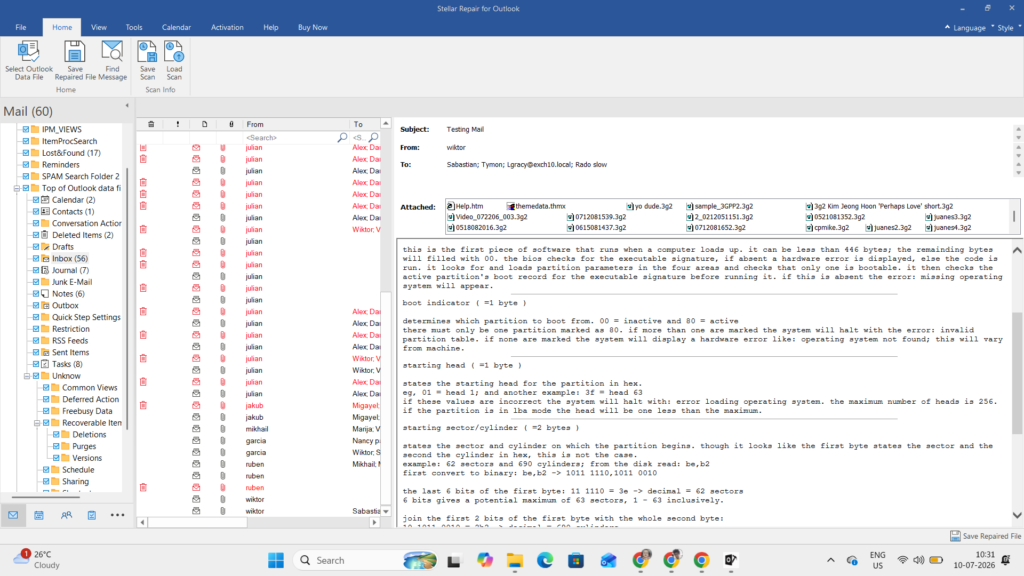
This preview option is helpful because users can confirm that important emails and attachments are recovered before exporting the final file.
Step 6: Save the Recovered Outlook Data
After verifying the recovered items, the final step was saving the repaired Outlook data.
Stellar Repair for Outlook allows users to save recovered mailbox information depending on their requirements.
Available saving options include:
- PST file format for importing back into Microsoft Outlook
- Other supported export formats
- Different saving options based on the software edition
This flexibility is useful for users who need to restore Outlook access, migrate recovered data, or keep a backup copy.
My Experience Using Stellar Repair for Outlook Desktop Software
During hands-on testing, the desktop software provided more control compared to the online repair service. The ability to select PST files manually, scan large files, preview recovered mailbox items, and save data locally makes it more suitable for advanced recovery needs.
For quick small PST repairs, the online version is convenient. However, for large PST files, multiple repairs, or important business mailbox recovery, Stellar Repair for Outlook desktop software provides a more complete recovery experience.
Key Features of Stellar Repair for Outlook
After testing the repair process, I explored the main features available in Stellar Repair for Outlook desktop software. These features are mainly focused on users who need advanced PST recovery, especially for large or business-critical Outlook files.
No PST File Size Limit
One of the biggest advantages of Stellar Repair for Outlook desktop software is that it can repair large PST files without file-size restrictions.
This is useful because Outlook mailbox files can become very large over time due to years of emails, attachments, and other stored information. Instead of splitting files or reducing mailbox size before repair, users can directly scan and recover large PST files.
This feature is especially helpful for:
- Business users with large Outlook databases
- Professionals storing years of email records
- Users dealing with oversized PST corruption issues
Batch PST Repair
For users who need to repair multiple corrupted Outlook files, Stellar Repair for Outlook supports batch PST repair.
Instead of repairing each PST file separately, users can add multiple files and process them together.
This feature is useful for:
- IT administrators
- Organizations managing multiple Outlook accounts
- Businesses handling several damaged PST files
Batch processing helps save time when dealing with multiple mailbox recovery tasks.
Complete Mailbox Recovery
Stellar Repair for Outlook is designed to recover complete mailbox data while maintaining the original folder structure.
It supports recovery of:
- Emails
- Email attachments
- Contacts
- Calendar entries
- Tasks
- Notes
- Mail folders
During testing, the software displayed recovered items in a structured preview, making it easier to verify mailbox data before saving.
Local Data Processing
Another important advantage of the desktop software is local PST processing.
Unlike an online repair service where files need to be uploaded, Stellar Repair for Outlook repairs PST files directly on the user’s computer.
This means:
- Outlook data remains on the local system
- Files are not uploaded during repair
- Users have more control over sensitive mailbox information
This makes the desktop version a better choice for businesses and users handling private or confidential email data.
Preview Before Saving
Before exporting the repaired PST file, the software allows users to preview recovered mailbox items.
Users can check:
- Folder structure
- Individual emails
- Attachments
- Contacts and calendar items
The preview option helps confirm recovery quality before saving the final repaired file.
Performance and User Experience
During testing, I reviewed Stellar Repair for Outlook based on three important factors: repair speed, recovery accuracy, and ease of use.
Repair Speed
The scanning and repair speed depends on the PST file size, corruption level, and total mailbox data.
- Small PST files: Smaller files usually scan faster because they contain fewer emails and attachments.
- Large PST files: Bigger mailbox files may take more time, but the software can handle large PST files without size restrictions.
- Severely damaged PST files: Deeply corrupted files can require longer scanning as the software performs a detailed recovery process.
Recovery Accuracy
After the repair process, I checked the recovered Outlook data quality, including:
- Folder Structure: Recovered mailbox folders and subfolders were displayed in an organized format.
- Emails: Messages maintained readable formatting after recovery.
- Attachments: Email attachments were available with recovered mailbox items.
- Deleted Items: The software detected recoverable deleted mailbox data during scanning.
Ease of Use
The software follows a simple recovery process:
- Select the corrupted PST file
- Scan and repair the file
- Preview recovered mailbox data
- Save the repaired Outlook file
The interface is easy to understand for beginners while still providing advanced options for professional Outlook recovery needs.
Pros and Cons: Stellar Online PST Repair vs Stellar Repair for Outlook Software
After testing both Stellar PST repair solutions, I found that each option has its own advantages and limitations. The online service focuses on quick browser-based recovery, while the desktop software provides more advanced features for larger and complex PST repair needs.
| Solution | Pros | Cons |
|---|---|---|
| Stellar Online PST Repair Service | ✔ No software installation required — repair PST files directly through a browser. ✔ Simple step-by-step process suitable for non-technical users. ✔ Free plan available for repairing small PST files. ✔ Allows preview of recovered mailbox structure before downloading the repaired file. | ✘ Has file size limitations compared to desktop software. ✘ Requires uploading PST files online for processing. ✘ Not ideal for repairing multiple PST files or advanced recovery requirements. |
| Stellar Repair for Outlook Desktop Software | ✔ Supports very large PST files without size restrictions. ✔ Batch repair feature helps repair multiple PST files together. ✔ Recovers complete mailbox data, including emails, attachments, contacts, calendars, tasks, and notes. ✔ Repairs files locally on the user’s computer without uploading data online. ✔ Better suited for professionals, IT teams, and business users. | ✘ Requires software installation. ✘ Advanced repair and saving features require a paid version. ✘ May provide more features than needed for users with only small one-time PST repairs. |
Final Verdict: Is Stellar Outlook PST Repair Worth Using?
After testing both Stellar PST repair solutions, I found that each option serves a different type of Outlook user.
The Stellar Online PST Repair Service is a convenient choice for users who need a fast and simple way to repair smaller PST files. It works directly from the browser, requires no installation, and allows users to preview recovered mailbox data.
Stellar Repair for Outlook desktop software is better suited for advanced recovery needs. Features like no PST file size limit, batch repair, complete mailbox recovery, and local processing make it a stronger option for professionals, businesses, and users managing important Outlook data.
Overall, the online service is best for quick PST recovery tasks, while the desktop software is the better choice for large, sensitive, or complex Outlook repair situations.

Leave a Reply