
Losing important files from your hard drive can feel devastating, especially when they contain essential information. Fortunately, most lost files aren’t permanently lost as they can be recovered with the right tools and methods.
This complete guide will walk you through the essential steps to retrieve files from the drive. Moreover, you will be introduced to an efficient file recovery tool that lets you recover essential files instantly.
Part 1. Can I Recover Deleted Files from My Hard Drive?
Part 2. Try 4 Reliable Ways to Restore Lost or Corrupted Hard Drive Data
Part 3. Signs You Should Call a Professional for File Recovery
Part 1. Can I Recover Deleted Files from My Hard Drive?
Yes, deleted files can often be recovered from a hard drive. However, success depends on how the data was lost and how you tackled the drive. In many cases, “deleted” files remain on the disk until the system overwrites their space with new data. It is recommended to immediately stop using the drive after losing data.
Common Scenarios That Cause Data Loss on Hard Drives
Before you recover files from a hard drive, it’s essential to understand the most common scenarios that lead to data loss:
1. Accidental Deletion: In most cases, users accidentally delete essential data while cleaning their PCs and later regret it.
2. Formatting the Wrong Drive: While formatting the corrupted drive, you wiped the wrong file, which contained essential data.
3. Incorrect Partitioning: Creating, resizing, or deleting partitions incorrectly can overwrite tables, causing files to disappear.
4. Application Crashes: Programs that freeze or crash while saving, exporting, or moving files can lead to file deletion.
5. Sudden Power Loss: Abrupt shutdowns or power cuts during read/write operations can corrupt open files and damage the file system.
Part 2. Try 4 Reliable Ways to Restore Lost or Corrupted Hard Drive Data
With the causes identified, let’s move on to practical solutions you can use to recover deleted files from a flash drive:
1. Use the Recycle Bin
Using the Recycle Bin is the simplest and safest way to retrieve your lost data. It restores files instantly, preserving the original file names and folder paths. Being a built-in tool, it does not require any technical knowledge, making it the most accessible option. Moreover, it does not rewrite disk sectors, thereby avoiding additional damage. With these key features in mind, here is how you can use this method:
Instructions. Open the Recycle Bin and scroll down to locate the lost files. Upon finding the file, right-click it and select “Restore” to recover the deleted file.
2. Use File History on Windows
In case you have deleted the essential file from the Recycle bin too, you can opt for this method. If you have enabled File History, it will automatically save files at shorter intervals. Plus, it keeps multiple versions of the file, letting you roll back to an earlier state. Being integrated with Windows, it provides a streamlined process, so look at its guide to recover files from hard drive:
Step 1. Initiate by going to the Start menu and opening the “Restore Your Files with File History” option.
Step 2. In the following interface, browse through all available files to find the desired one. Next, right-click the desired file and hit the “Green Arrow/Restore” button.
3. Use Time Machine (Mac)
This method is beneficial for Mac users, as this tool continuously backs up your data at frequent intervals. This tool integrates with macOS and supports encrypted backup disks, you don’t need to use third-party tools. Furthermore, it is recommended as it provides automatic, versioned backups with no manual effort. Now that you are familiar with this method, you can follow the guide below to recover files from a hard drive.
Step 1. After launching your Mac, click on the “Time Machine” icon located at the top right corner and select “Enter Time Machine.”
Step 2. Now, choose the Documents folder to later select the desired file and hit the “Restore” button.
4. Use a Professional Windows Data Recovery Software
Imagine a small business owner who stores all client invoices, contracts, and tax documents on a single office PC. One morning, the system becomes corrupted, and while fixing it, you accidentally format the whole drive. You confirmed that the Recycle Bin is empty and that File History is not enabled. Instead of panicking, we recommend using Wondershare Recoverit, which offers various scanning modes.
This tool recovers data from many loss scenarios, including accidental deletion, formatting, partition loss, and virus attacks. The foremost part is that it has recently launched the V14 version, which offers results with maximum accuracy. Furthermore, it supports 2,000+ storage devices, including HDDs/SSDs, and USB drives.
Key Features
1. Intuitive Interface: Recoverit Data Recovery provides you with a user-friendly interface and streamlined procedure to recover lost files.
2. Preview Feature: Users can even preview the recovered outcome to verify its accuracy before saving it to the device folder.
3. Supported Media Devices: Being an ideal solution, it provides wide support to various media devices, including cameras, drones, and GoPro.
Detailed Guide on How To Use Recoverit For Data Recovery
To retrieve files from the hard drive, if you want to explore a detailed guide on how to use Recoverit, then adhere to the steps below:
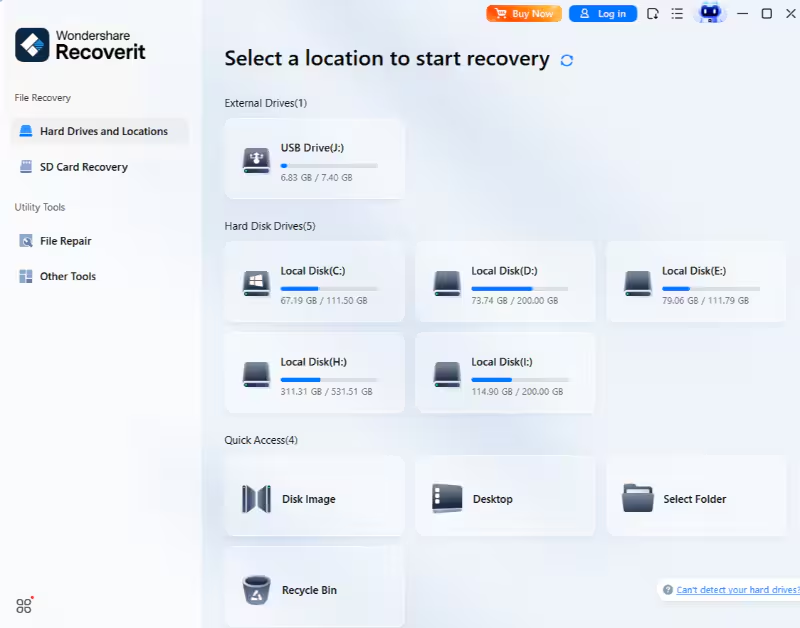
Step 1. Select the Hard Drive and Locations Menu
At first, choose the “Hard Drive and Locations” option from the left panel. Next, find the desired location within the “Quick Access” section to initiate the scan.
Step 2. Browse Recoverable Files After the Scan Completes
As the scan starts, you can browse the desired file from all the recoverable files in the “File Location” tab.
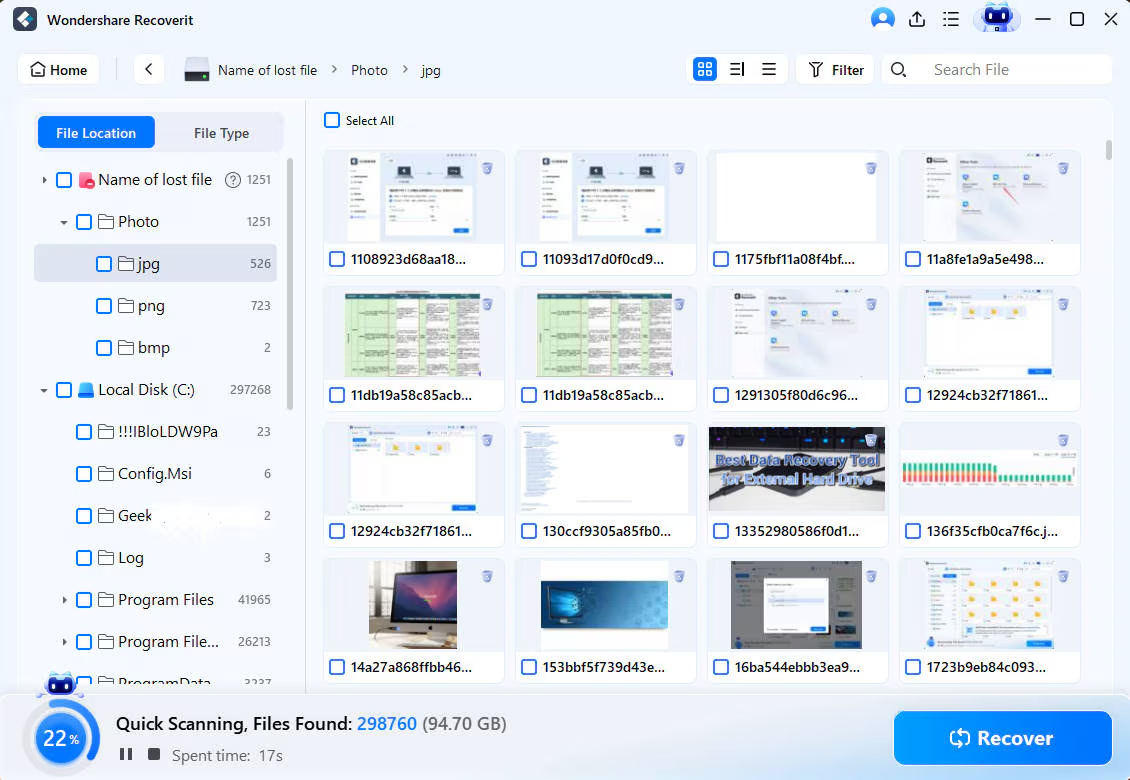
Step 3. Confirm the Details and Finish the Recovery Procedure
Preview the recovered file to verify the file’s overall formatting. Afterwards, click on the “Recover” button to complete the recovery process.

Part 3. Signs You Should Call a Professional for File Recovery
Not all data loss situations can be handled on your own. Let’s look at the warning signs that indicate professional file recovery is necessary:
1. Unusual Drive Noise: The drive makes repeated clicking, grinding, or beeping sounds when the system is turned on or when you access a file.
2. Physical Damage: The hard drive has been exposed to water, fire, extreme heat, or shows visible damage in ports, indicating professional help.
3. Server Performance Error: The computer freezes, crashes, shows disk read/write errors, or becomes extremely slow, specifically when you access that drive.
4. Serious Malware: Files are suddenly encrypted, renamed, or disappear instantly when you click on them, which shows that your device has been affected by a virus.
5. Risky DIY Attempts: You tried DIY home attempts that failed and even worsened the data loss situation.
Conclusion
Summing up, with the advancement of technology, users can now easily retrieve files from the hard drive. This guide lists 4 of the most efficient methods, including both built-in and third-party tools, along with their respective guides. However, we recommend using Recoverit, which offers multiple scanning modes and has recently launched the V14 version, making it an ideal solution.

Leave a Reply