
Open Settings, tap General, then Software Update, and you may notice something different. If your iPhone is still on iOS 26, the big, prominent update is no longer a small security patch. It is iOS 27.
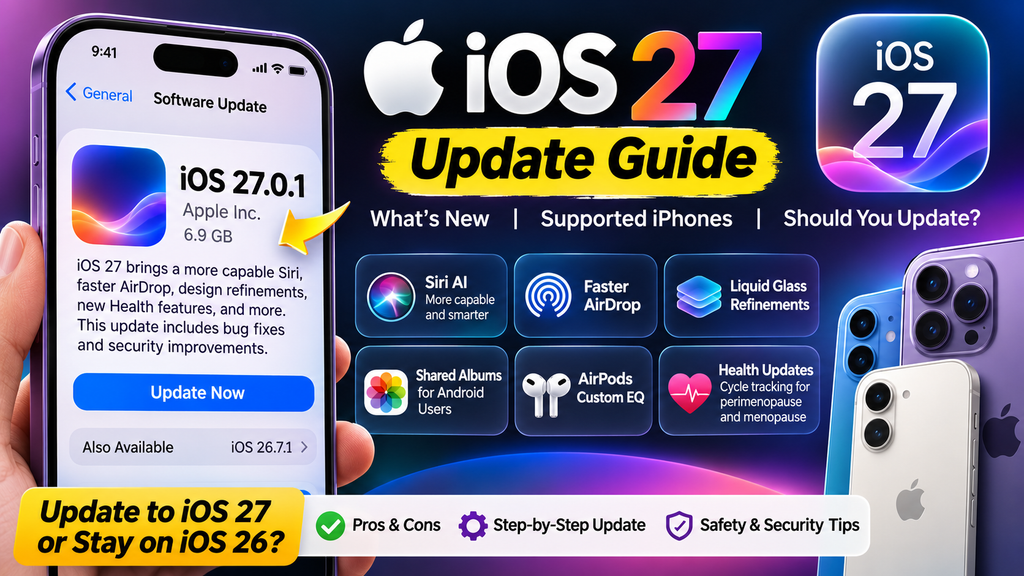
Apple released iOS 27 on September 14 and, for the first few weeks, played it cautious: iOS 26 users kept seeing their own version as the main update. On October 8, that changed. Apple made iOS 27.0.1 the headline option and tucked iOS 26.7.1 under “Also Available.” It is a clear nudge, though not a requirement.
So what should you do? This guide explains what iOS 27 brings, which iPhones get which features, how to prepare and update safely, and when staying on iOS 26 for a while is perfectly reasonable.
What Is New in iOS 27?
iOS 27 is a mix of long-awaited intelligence upgrades and everyday polish. Highlights reported at launch include:
- Siri AI: A much more capable Siri is the marquee feature, available on iPhones that support Apple Intelligence.
- Faster AirDrop: Quicker transfers between Apple devices.
- Liquid Glass tweaks: More refinements to the translucent design Apple introduced with iOS 26.
- Shared Albums for Android users: iCloud Shared Albums now lets people on Android contribute full-resolution photos.
- AirPods custom EQ: More control over how your AirPods sound.
- Health updates: New cycle tracking for perimenopause and menopause.
Coverage also described iOS 27 as a more stable release than iOS 26, with Apple putting extra focus on bug fixes. Apple’s decision to push it earlier than it did with iOS 26 is often read as a sign of confidence in that stability, though that remains an interpretation rather than an official statement.
Which iPhones Can Install iOS 27?
Apple did not drop any models this year. If your iPhone runs iOS 26, it can also install iOS 27. That includes the iPhone 11 series and the second-generation iPhone SE.
Not Every iPhone Gets Every Feature
This is the part people miss. Older or lower-end models can install iOS 27 but do not receive the Apple Intelligence features, including Siri AI. Reports at announcement time listed the iPhone 11, 12, 13, 14, and the standard iPhone 15 in this group. That is a hardware limit, not something a later software update can fix.
If you own one of those phones, you will still get performance improvements, design updates, and security fixes, but you should not expect the headline AI features.
Why Apple Wants You on iOS 27
There are practical reasons for the nudge:
- Security focus moves to the newest version. Apple’s newest software always gets the most complete protections.
- Fewer versions to support. Maintaining several major versions is costly.
- Feature rollout. New services, such as Siri AI, are built around the current release.
That said, Apple is not forcing anyone. You can stay on iOS 26 and still receive security fixes for now.
Security: Why You Should Not Ignore Updates Either Way
Whichever path you choose, do not skip security updates. In recent weeks, Apple released patches across multiple versions. In late October, Apple fixed a CoreGraphics flaw that may have been exploited on older iPhones, with fixes shipping for iOS 26.7.2 and for the older iOS 18 line. Apple also shipped fixes for around 100 vulnerabilities across a pair of updates around the iOS 27 launch, and the company’s pages did not flag those as exploited in the wild.
The lesson is simple: staying current is the best protection. If you stay on iOS 26, install every iOS 26.7.x update promptly. How long Apple will keep issuing iOS 26 security patches is not guaranteed, so do not plan to stay behind indefinitely.
Should You Update Now? A Quick Decision Guide
Update Now If You…
- Have an iPhone that supports Siri AI and want the new features.
- Want the strongest ongoing security protection.
- Use an iPhone 11 or newer and want performance and design improvements.
- Have already backed up and have enough free storage.
Wait a Little If You…
- Depend on your phone for work and cannot risk a surprise issue this week.
- Use apps that have not been confirmed to work on iOS 27, such as banking, accessibility, or work apps with strict requirements.
- Have a nearly full phone, since a large update needs free space. Users with 128 GB models have reported feeling the pinch.
- Own an older model and are mainly interested in AI features it will not get.
If you wait, set a calendar reminder to revisit in a few weeks. Most people will eventually want the newest version.
How to Update Your iPhone Safely
Step 1: Back Up Your iPhone
A backup protects you if anything goes wrong. You have two main options:
- iCloud backup: Go to Settings > [your name] > iCloud > iCloud Backup and tap Back Up Now.
- Computer backup: Connect your iPhone to a Mac or PC and create an encrypted backup. An encrypted backup also saves health and saved-password data.
Note that backups made on a newer iOS version generally cannot be restored to an older one, so back up before updating.
Step 2: Free Up Storage
Open Settings > General > iPhone Storage and review what is using space. Delete unused apps, offload large apps, and clear old videos. Aim for at least several gigabytes free.
Step 3: Charge and Connect
Use Wi-Fi and keep the phone plugged in. Updates require at least 20 percent battery, but a higher charge is safer.
Step 4: Install the Update
- Open Settings > General > Software Update.
- Tap Update Now next to iOS 27.
- Enter your passcode if asked, and let the phone restart.
Step 5: Check Your Setup Afterward
Open key apps, test your banking and messaging apps, and confirm your Wi-Fi, Bluetooth, and AirPods connections work. Give it a day or two before judging battery life, because phones often use extra power while re-indexing after a big update.
How to Stay on iOS 26 for Now
If you prefer to wait, you can. In Settings > General > Software Update, look for Also Available and choose the latest iOS 26 update, currently iOS 26.7.1 or newer. You can also review automatic update settings in the same menu to control whether your phone installs updates overnight.
If you have automatic updates turned on, your iPhone may install major updates on its own while it is charging and on Wi-Fi. Turn off the major-version option if you want to stay in control.
What If You Do Not Like iOS 27?
Going back is difficult. Apple generally allows downgrades only for a short time while it still signs the older version, and a downgrade often means erasing the phone and restoring from a backup made on the older system. For most people, the practical answer is to update carefully rather than expect an easy way back.
Frequently Asked Questions
Is iOS 27 free?
Yes. It is a free update for all supported iPhones.
Will iOS 27 slow down my older iPhone?
Results vary. Early coverage of the iPhone 14 suggested performance differences between iOS 26 and iOS 27 are subtle. Phones often feel slower for a day or two right after updating as background tasks finish.
Does my iPhone 14 get Siri AI?
No. It can run iOS 27 but is listed among models without Apple Intelligence and Siri AI.
Can I still get security updates on iOS 26?
Yes, for now. Apple continues to release iOS 26.7.x security updates. Install them promptly if you stay on iOS 26.
How long does the update take?
Often 15 to 45 minutes, depending on your connection and device, and sometimes longer for larger downloads.
Should I wait for iOS 27.1?
Some people wait for the first few point updates to avoid early bugs. Since Apple is already recommending iOS 27.0.1 and has described a stability-focused release, waiting is optional, not essential.
Conclusion
Apple’s decision to put iOS 27 front and center is a signal that the new version is ready for the mainstream. For most iPhone owners, updating after a backup is the smartest long-term choice, especially if you want Siri AI or the strongest security. If you need more time, stay on iOS 26, keep installing its security fixes, and plan to move over within a few weeks. Either way, back up first and never ignore a security update.