
An alert lands on your iPhone’s Lock Screen saying Apple detected a mercenary spyware attack aimed at your device. Your stomach drops. Is your phone hacked? Is this even real?
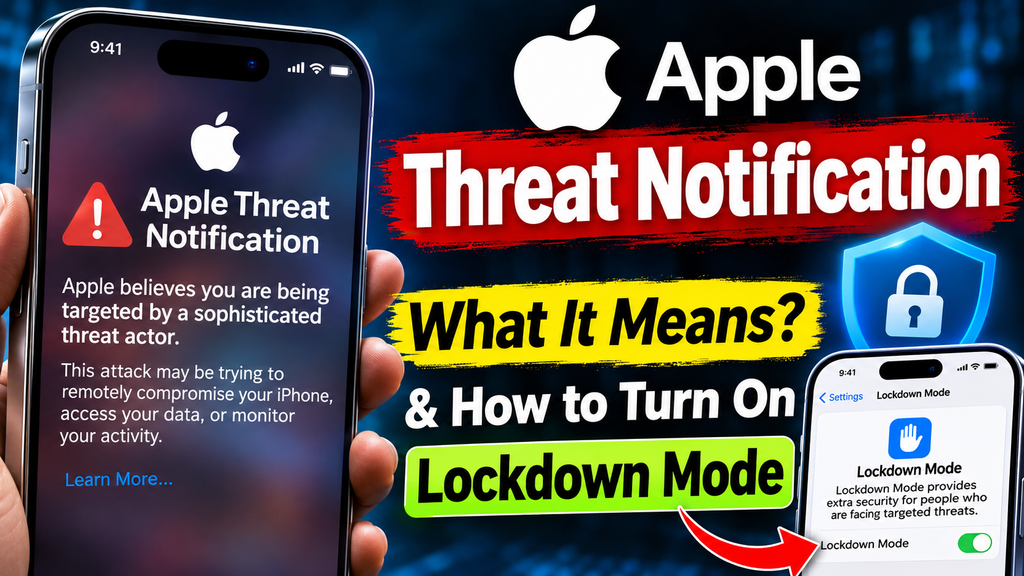
Thousands of people have faced exactly that moment this year. Apple sent a large wave of threat notifications in August, reaching users in 110 countries, and another round on October 30 covering 99 countries. Reports in early November also described German officials and journalists among the recipients. Apple has now warned users in well over 150 countries since it launched the system in 2021.
If you received one, or you simply want to know what you would do if you did, this guide walks through what these alerts mean, how to confirm one is genuine, and the exact steps to lock down your iPhone.
What Is Mercenary Spyware?
Mercenary spyware is surveillance software built by commercial vendors and sold to governments and other paying clients. Tools in this category are similar to the well-known Pegasus spyware from NSO Group. They can read messages, access the microphone and camera, and track location, often without the victim doing anything at all.
The key feature is cost and focus. Apple notes that these attacks are extremely expensive to develop and deploy, so they are aimed at a very small number of people, such as journalists, activists, politicians, diplomats, and others with sensitive roles. For the vast majority of iPhone owners, this is not an everyday risk.
Why “Zero-Click” Matters
Many of these attacks are “zero-click,” meaning the target does not have to tap a link or open a file. A malicious message or request can be enough to trigger the exploit. That is why ordinary habits like “don’t click suspicious links” are not sufficient on their own, and why Apple built a special protection mode for high-risk users.
What an Apple Threat Notification Actually Means
A threat notification is not a confirmation that your phone was breached. Security researchers point out that it means Apple detected indicators consistent with an attempted targeted attack. The attempt may have failed, or it may have partly succeeded. Apple does not reveal what triggers an alert, because that would help spyware makers dodge detection.
What it does mean is that you should take it seriously. Apple says genuine notifications are sent only when it has high confidence that a person is being targeted individually.
How to Verify a Threat Notification Is Genuine
Scammers love moments of fear, so fake “Apple security alert” messages exist. Apple delivers real notifications in several places at once:
- On the device: an alert on the Lock Screen and a notification banner inside the Settings app.
- By email: a message from threat-notifications@email.apple.com sent to the addresses linked to your Apple Account.
- On the web: a banner at the top of your Apple Account page after you sign in at account.apple.com.
Red Flags of a Fake Alert
Apple states that a real threat notification will never ask you to click a link, install an app or profile, call a phone number, or hand over your password or a verification code. If a message does any of those things, it is a scam. The safest check is to open a browser yourself, type account.apple.com, sign in, and look for the banner. Never use a link from the message.
How to Turn On Lockdown Mode (Step by Step)
Lockdown Mode is an optional, extreme protection setting for people who may be targeted by sophisticated attackers. Apple has said that, as of March 2026, it was not aware of any successful mercenary spyware attack against a device that had Lockdown Mode enabled at the time of the attack.
Here is how to enable it on an iPhone:
- Open Settings.
- Tap Privacy & Security.
- Scroll down and tap Lockdown Mode.
- Tap Turn On Lockdown Mode and read the summary.
- Tap Turn On Lockdown Mode again, then confirm by tapping Turn On & Restart.
- Enter your passcode if asked. The phone restarts with the protection active.
You can turn it on for iPad and Mac in a similar way, using the same Lockdown Mode setting in their system settings. If you use several Apple devices, enable it on all of them, since an attacker only needs one weak point.
What Changes When Lockdown Mode Is On
Lockdown Mode works by shrinking the attack surface. Expect some trade-offs:
- Messages: most attachment types are blocked, and some link previews are disabled.
- Web browsing: certain complex web technologies are turned off, so some sites may load slowly or look different.
- FaceTime and invitations: incoming invitations and calls from people you have not contacted before are blocked.
- Configuration profiles: new profiles cannot be installed.
- Wired connections: your iPhone cannot connect to a computer or accessory while locked.
If a trusted website misbehaves, you can exclude that specific site in Safari rather than turning the whole mode off.
What to Do Right After You Get a Threat Notification
Do not panic, but act promptly. Apple recommends taking immediate steps to strengthen your device and accounts.
- Verify the alert at account.apple.com, as described above.
- Enable Lockdown Mode on every Apple device you own.
- Update everything. Go to Settings, then General, then Software Update, and install the newest iOS. Security patches often close the exact flaws that spyware uses.
- Change your Apple Account password from a device you trust, and make sure two-factor authentication is on.
- Review your other accounts. Email, messaging apps, and cloud storage should get strong, unique passwords and two-factor protection.
- Restart regularly. A reboot can disrupt some persistent attacks, so restarting your phone often is a cheap extra habit.
- Get expert help. Targeted spyware cases may need forensic analysis. Apple directs recipients to specialist support, and the Digital Security Helpline run by Access Now offers free assistance to at-risk people such as journalists and activists.
Be Careful With Evidence
If you suspect you are being surveilled, consider that a compromised phone could expose your plans to the attacker. Discuss next steps from a different, clean device where possible, and avoid wiping your phone before experts have a chance to examine it, since a factory reset can destroy evidence.
Everyday Security Habits for Everyone Else
Most readers will never receive a mercenary spyware alert, but the same basics protect you from far more common threats:
- Install iOS and app updates as soon as they are released, or turn on automatic updates.
- Use a strong passcode and enable Face ID or Touch ID.
- Turn on two-factor authentication for your Apple Account and email.
- Only install apps from the App Store, and delete the ones you no longer use.
- Be skeptical of any urgent message that pushes you to click, call, or share a code.
Frequently Asked Questions
Does an Apple threat notification mean my iPhone is hacked?
Not necessarily. It means Apple saw signs consistent with a targeted attack attempt. The attack may have been blocked. You should still verify the alert, update your device, and consider Lockdown Mode.
Can I see what triggered the alert?
No. Apple does not share the technical details because doing so would help attackers evade detection. Expert help from a security organization can offer a deeper look at your device if needed.
Will Lockdown Mode slow down my iPhone?
It does not make the hardware slower, but some features are restricted, and certain websites may load differently. Many people find the trade-off acceptable if they are at genuine risk.
Is Lockdown Mode necessary for the average user?
No. Apple designed it for a small group of people who may be targeted by sophisticated attacks. Regular users are better served by updates, strong passwords, and two-factor authentication.
Can I turn Lockdown Mode off later?
Yes. Go back to Settings, Privacy & Security, Lockdown Mode, and choose Turn Off Lockdown Mode. Your device restarts, and normal features return.
Conclusion
An Apple threat notification is rare, serious, and worth acting on, but it is not a reason to panic. Verify it through account.apple.com, enable Lockdown Mode, update your devices, secure your accounts, and seek expert help if you may be a target. Even if you never see one of these alerts, spending ten minutes this week on updates and two-factor authentication puts you far ahead of most attackers.