
On Thursday, November 12, millions of people opened Outlook and found nothing. Email would not load. Teams meetings failed to start. Copilot went quiet. For many offices, the workday simply stopped.
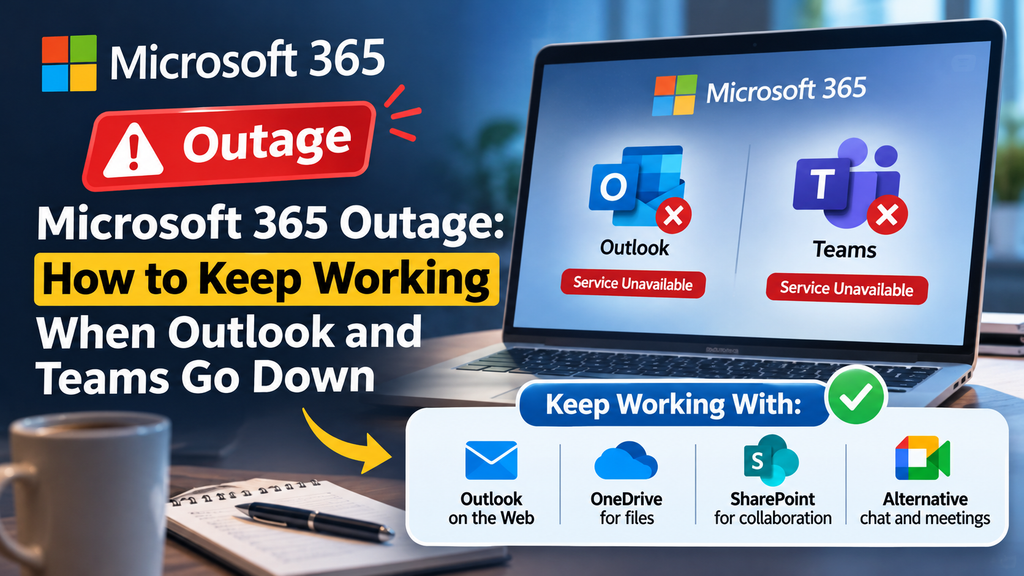
The disruption began late on November 12 (UTC) and dragged on for many hours, with some users still seeing problems well into the next day. Microsoft said the cause was server trouble rather than a cyberattack, and at the time of the first reports it had not published a confirmed root cause. Commentators were quick to joke about “Microsoft 364,” but the underlying point is serious: a huge share of modern work depends on a handful of cloud services.
You cannot prevent Microsoft from having a bad day. You can, however, make sure that your team has a bad hour instead of a lost day. This guide explains what happened, why outages like this ripple so far, and the exact steps to build a simple continuity plan for your business, school, or home office.
What Happened in the November 2026 Microsoft 365 Outage
Reports of failures began on November 12 and quickly spread across regions. Outlook and Exchange Online were hit first, followed by Teams, SharePoint, OneDrive, Copilot, and admin tools such as Intune. Outage trackers logged more than 131,000 user reports at the peak, and Reuters reported disruption for businesses and government offices alike. Xbox services were also affected as the incident widened.
Microsoft pointed to servers failing health checks and worked to restart them and gradually restore traffic. Some reports said access was restored within roughly half a day, while others described a disruption lasting close to 24 hours, depending on region and service. Microsoft indicated that a preliminary post-incident review would follow, so the technical details may become clearer in the coming days.
The important lesson is not the exact timeline. It is that one provider’s failure can freeze email, chat, file sharing, and even the tools used to manage security at the same moment.
Why One Cloud Outage Spreads So Far
Most organizations use Microsoft 365 as a single bundle. That bundle is convenient, but it creates a few common weak points.
- Shared identity: Sign-in for every app depends on the same authentication system. If it stalls, everything looks “down.”
- Shared infrastructure: Email, chat, and files often run on overlapping back-end services.
- Communication dependency: When email and Teams fail, the usual way to announce the problem fails too.
- Third-party links: Many other tools, including AI assistants and automation apps, connect to Microsoft accounts and can break when it does.
The fix is not to abandon Microsoft. It is to remove the single points of failure around it.
Step 1: Confirm It Is Really an Outage
Before you reset passwords or reinstall Outlook, check whether the problem is on your side. Wasting an hour troubleshooting a global incident is a common mistake.
- Check the Microsoft 365 admin center. Admins can open Service health to see active incidents.
- Look at Microsoft’s official status channels. The Microsoft 365 Status account on X posts updates during major incidents.
- Try another network and device. If a phone on mobile data fails as well, the problem is probably not your Wi-Fi.
- Search outage trackers to see whether others are reporting the same issue.
If Microsoft confirms an incident, stop troubleshooting and move to your backup plan.
Step 2: Set Up Your Backup Communication Channel
The single most useful preparation is a way to reach your team when the main tools are dead.
Choose an Independent Channel
Pick a messaging service that does not rely on Microsoft, such as a separate Slack workspace, Signal, WhatsApp, or Google Chat. Create a group for managers and key staff now, not during the crisis.
Keep an Offline Contact List
Store a printed or phone-based list of mobile numbers for key people, vendors, and your IT provider. If your directory lives in Outlook, it will vanish exactly when you need it.
Write a Two-Line Outage Message
Prepare a template you can paste anywhere:
“Microsoft 365 is experiencing an outage. Please use [backup channel] for urgent matters. We will update you every hour.”
Step 3: Make Files and Email Available Offline
A few settings can keep people productive even when the cloud is unreachable.
Keep Important OneDrive Files on the Device
On Windows, right-click a critical folder in File Explorer and choose Always keep on this device. This downloads a full copy so you can open and edit documents without a connection. Changes sync back once service returns.
Use Outlook’s Cached Mode
In the desktop Outlook app, Cached Exchange Mode stores a local copy of your mailbox. You can still read old messages, search, and draft replies during an outage. Outgoing mail will send when the connection to the server is healthy again.
Download Key Calendars and Contacts
Export your upcoming meetings and essential contacts to a file or to your phone. Knowing who you are meeting and how to reach them can save an important day.
Step 4: Protect Your Admin Access
If you manage your organization’s Microsoft tenant, plan for the moments when normal sign-in is broken.
- Create emergency access accounts. Microsoft recommends a small number of “break-glass” admin accounts that are excluded from normal conditional access rules, protected with very strong credentials, and monitored closely.
- Keep alternative contact details. Make sure Microsoft can reach you at an address that is not hosted on your own affected tenant.
- Document your recovery steps. Write a one-page runbook so any admin can follow it under stress.
Step 5: Back Up Your Data Independently
Microsoft keeps your service running, but protecting your data from deletion, ransomware, or user error is largely your responsibility. Consider a third-party backup tool for mailboxes, SharePoint, and OneDrive, or at least scheduled exports of your most important data. An independent copy also gives you something to work with if an incident is prolonged.
Step 6: Plan What the Business Does During Downtime
Technology is only half the answer. Decide in advance how the team behaves.
- Appoint an incident lead who decides when to switch to the backup plan.
- List critical tasks that cannot wait, such as payroll approvals, customer support, and urgent orders.
- Define manual workarounds, like phone calls, paper forms, or a shared spreadsheet kept locally.
- Set an update rhythm, for example every hour, so people are not left guessing.
- Hold a short review afterward to note what worked and what did not.
Can You Get Compensation for an Outage?
Microsoft publishes service level agreements for its cloud products, and these typically promise a high monthly uptime percentage. If service falls below the commitment, customers may be eligible for service credits. The process usually requires you to submit a claim within a set time, so check your agreement and keep records of when the disruption affected you. Credits are normally small compared with the cost of lost work, which is another reason a continuity plan matters.
Frequently Asked Questions
Was the Microsoft 365 outage caused by a cyberattack?
Microsoft said the issue was related to server problems, not a cyberattack. As of the early reports, a confirmed root cause had not been published, so the final explanation may change when the post-incident review is released.
How long do Microsoft 365 outages usually last?
Most incidents are resolved in minutes to a few hours. Large events, like this one, can run much longer. Planning for a half day or more without email is a sensible target for critical operations.
Can I still work if Outlook is down?
Partly. With Cached Exchange Mode you can read older emails and prepare drafts. With OneDrive files kept on your device, you can keep editing documents. Real-time collaboration and sending messages will wait for service to return.
Should small businesses worry about this?
Yes. Small teams often rely on Microsoft 365 for everything and have no IT department to guide them. A backup chat group, an offline contact list, and a few offline settings cost almost nothing and are very effective.
Is switching to another provider the answer?
Not by itself. Every major provider has outages. A better strategy is resilience: independent communication, offline access, and independent backups, whichever platform you use.
Conclusion
The latest Microsoft 365 outage is a reminder that the cloud is someone else’s computer, and sometimes that computer has a very bad day. You do not need an expensive overhaul to prepare. Create a backup communication channel, keep key files and mail available offline, set up emergency admin access, and write a short plan your team can follow. Spend an hour on these steps this week, and the next outage will be an inconvenience instead of a crisis.